Day 2 - Find Keywords Driving Your Traffic

Introduction
Now that your shop’s niche is clearly defined, it’s time to take a look at some of the keywords that brought traffic to your listings and find some new keywords to test. You’ll be using eRank’s Keyword Tool to explore keywords and learn more about how to experiment with changes to your listings.
💡When experimenting, remember eRank’s Golden Rule of SEO: Never change the SEO of a listing that is performing well for you!
What Keywords Drove Traffic to Your Listings?
There are a few different places you can look to discover valuable insights for your shop:
- If you’ve had Google Analytics synced to your Etsy and eRank accounts for at least 30 days, you can use eRank’s Traffic Stats to see what keywords have recently brought shoppers to your listings.
- For sellers who synced their accounts yesterday (or less than 30 days ago), visit Etsy to view some of this data available to you via your Shop Manager.
Using eRank’s Traffic Stats
Having a wealth of knowledge about the keywords shoppers use and their demographics is invaluable for your business. That’s where Traffic Stats comes in. Once you have the tools synced, you’ll see daily updates on the keywords that are driving traffic to your shop. Choose your preferred date range and view your shop’s top keywords, top traffic sources, and top shopper locations.
Today, we’re starting with the Top Keywords display on your eRank dashboard. Your top five keywords from the date range you’ve selected display here. Click “View All” to go to your Etsy Traffic page, which shows the list of keywords shoppers used to find you over the past 7 days, 30 days, or 3, 6, or 12 months. This page shows not only the keyword, but also the number of visits from that keyword and the average placement of your listings on a search result page. Use the “🔽” arrow next to a keyword to display which of your listings ranked for that keyword.
For a quick visual demo of how to access your Traffic Stats, watch the short video below:
Click the star next to any keyword to add it to a Keyword List. This is a self-curated list that you can refer to again and again, so you never forget a great keyword. While this tool is available to all users, quotas vary based upon the type of eRank plan.
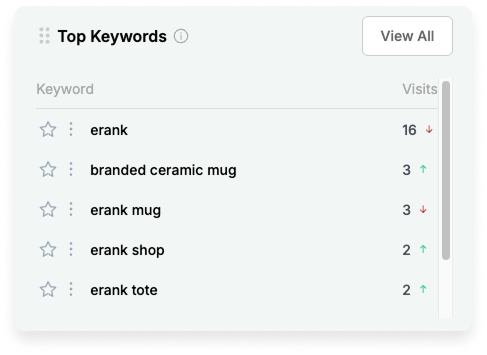
To see the list of keywords bringing traffic to a specific listing, click its title and then click the “Listing Audit” button. Then, click the “Analytics” tab. This tool is integrated with Traffic Stats. Scroll down to see the traffic and top keywords for that particular listing. You can choose to view visits from organic Etsy searches or Etsy ads (if you are running them). Clicking any of these keywords takes you to its Keyword Tool results (We’ll talk more about this below).
Using Etsy’s Stats
If you’re waiting for Google Analytics to gather data for your shop, you can view some of your traffic data in your Etsy Shop Manager in the meantime. Navigate to your Etsy Shop Manager, click on Listings, then find the listing that you want to dive into. Click the gear below the main listing thumbnail to open up a menu, then click “View Stats.”
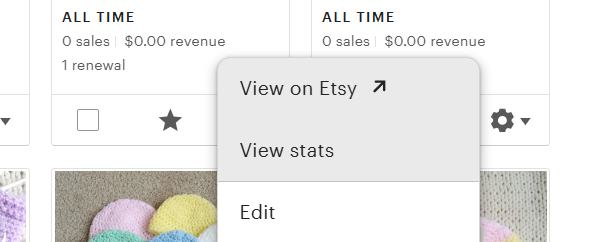
The “Listing Stats” page shows you search and sales data for that item. Scroll down to view the “Search terms” section. This area displays some of the keywords that shoppers used to find that particular listing, along with the number of visits for each keyword. If you see any keywords here that you want to research, simply copy and paste them into eRank’s Keyword Tool. You can also go into your eRank Keyword Lists, choose a list, and save that keyword to it for future reference.
Research Keywords with the Keyword Tool
When you find a keyword that brings traffic to your shop, it’s a great starting point to find other relevant terms that shoppers are searching. Clicking any keyword within the Traffic Stats tool takes you to its search data in the Keyword Tool. This tool shows you broad metrics such as average monthly searches, click-through rates, and competition, as well as a trend graph showing each keyword’s popularity over time.
You can also view related keywords and their basic metrics. Click the star to the left of any keyword to add it to a Keyword List. Free eRank account members see limited data here. Instead, click the box beside any interesting keywords, then copy and paste them into the Bulk Keyword Tool to see more details.

To see other tags your competitors are using, click the Top Listings tab. This shows the top 100 listings on Etsy that rank for this keyword, stripped of the personalization that Etsy uses when ranking listings on a search results page. You can see the other tags these listings use, along with their prices, estimated conversion rates, and more. Here too you can click the star next to any tag to add it to a Keyword List.
For more niche research, use the Search Results Analysis tab. This displays average prices, processing times, and daily views for the top 100 listings, as well as the most popular categories and most popular tags used (as a word cloud). Having this data at hand gives you an idea of how to price within your chosen niche or product and what categories are seeing success with the keyword you initially searched for.
Track Changes to a Listing
It’s important to scientifically follow data for your listings once you’ve made changes, to learn if the changes are having any positive or negative impact. eRank’s Changes tool is made for this. To begin tracking a listing, go to your Listings page and click “Track” next to the listing you want to keep an eye on. eRank will begin taking snapshots of the metrics for this listing, and will show you before-and-afters of any basic changes you make, such as title, tag, thumbnail, or price adjustments. Always turn tracking on before making changes, so you can refer to how the listing was structured before the changes, in case you need to revert back.
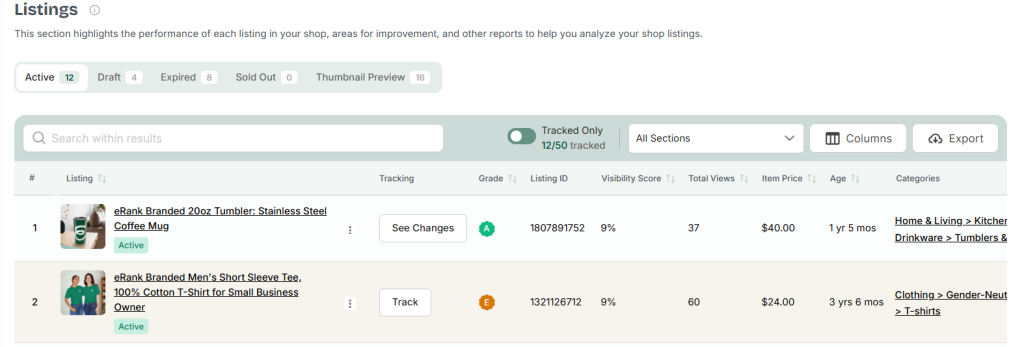
☝️NOTE: Your eRank subscription level determines the number of listings you can track, as follows:
- Free Members: 0 listings
- Basic Members: 5 listings
- Pro Members: 20 listings
- Expert Members: 50 listings
If you've exceeded your quota for tracked listings, or if you're a Free member, you can still keep tabs on your listings by tracking your changes manually. Access a free Listing Changes Tracker PDF from our team here to use while you're experimenting. Need some guidance on how to use the tracker, find the data, and assess the results? Use the companion guide alongside the tracker.
Conclusion
Before making changes to your listings in an attempt to refine your SEO, it’s important to know which keywords already bring shoppers to your listings. Using eRank’s Traffic Stats tool along with data provided by Etsy can give sellers insights into which keywords work for your business. Using those keywords as the basis of your overall keyword research gives you direction and can help narrow down the terms to use in your listings.
Today’s Tasks:
- Explore eRank’s Traffic Stats (if available) or Etsy’s Listing Stats
- Save 5 keywords that brought you traffic to a Keyword List
- Choose 1 listing to track changes for and begin tracking it (if using a Free plan, record this listing in a document or on paper, noting the views, title, tags, and performance)
.webp)